How to Download WhatsApp Messages: Conversations, Photos and Videos
Photos, videos and files are often the reason a WhatsApp conversation is worth keeping. Yet when you try to download WhatsApp messages the simple way, the result is usually a plain text file — and the media stays behind.
There are two practical ways to save a conversation: WhatsApp's built-in export on Android and iPhone, or a computer workflow through WhatsApp Web.
In this guide, we'll show you how to download WhatsApp messages with or without media, how to include available photos, videos and files, and how to choose the export method that fits your situation.
How to Download WhatsApp Messages to Your Computer
There are two main ways to save WhatsApp conversations outside the app.
Method 1: Use WhatsApp's built-in export feature.
On Android and iPhone, WhatsApp provides an option to export individual or group conversations. Depending on the available settings, you can include media attachments such as photos and videos.
Method 2: Export conversations from WhatsApp Web.
If you want to download WhatsApp messages directly to your computer, a WhatsApp chat exporter like WAExport lets you save selected conversations in HTML, Excel, or CSV format. You can also enable media export to include available photos, videos, and files alongside the messages.
The difference is mainly in how you work with your exported data.
WhatsApp's built-in export is convenient for saving a conversation from your phone. WAExport is designed for users who want to select chats and dates from WhatsApp Web and organize exported records on a computer.
Both approaches create separate copies of your conversations. They are not substitutes for WhatsApp's restorable account backups.

How to Download WhatsApp Conversations, Photos & Videos with WAExport
WAExport is a Chrome extension for exporting WhatsApp Web conversations. It allows you to choose chats, set a date range, select an export format, and include available media in the same export.
This means you can preserve written conversations together with related photos, videos, and documents, rather than manually copying messages into separate files.
Follow the steps below.
Step 1: Install WAExport and Open WhatsApp Web
Install WAExport from the Chrome Web Store, then open WhatsApp Web in Chrome.
- Link your WhatsApp account if necessary.
- Wait for your conversations to load.
- Open the WAExport extension.
- Find the chat export interface.
Before starting, confirm that the conversations you need are accessible in WhatsApp Web.
Older messages or media that are no longer available through WhatsApp Web may not be retrievable.
Step 2: Select the Conversations You Want to Save
In WAExport, select the individual or group conversations you want to download.
For example, you might want to preserve a family conversation containing photos and videos, a customer discussion with important attachments, or a group chat containing project updates.
You can select multiple conversations according to your needs.
Choosing relevant chats helps keep your exported records organized and avoids including unrelated discussions.
Step 3: Set the Date Range
Next, choose the start and end dates for your export.
For example, you might want to save conversations from a particular month, preserve messages exchanged during a project, or export a longer period of chat history.
Date filtering is especially useful when conversations contain large amounts of text and media.
Choose a range that includes the messages and attachments you want to preserve. Remember that selecting a date range does not guarantee that every historical attachment remains accessible.
Step 4: Choose HTML, Excel, or CSV
WAExport supports three export formats.
| Format | Best Use |
|---|---|
| HTML | Reading exported conversations in a browser |
| Excel | Reviewing and organizing chat records in spreadsheets |
| CSV | Processing structured message data in compatible applications |
HTML is useful when you want a readable copy of your conversations.
Excel helps when you need to organize messages for work or recordkeeping.
CSV provides a widely supported format for processing structured chat information.
Choose the format that matches how you plan to use the exported conversations.
WAExport also offers Safe Mode and Quick Export. Consult the product guidance if you're unsure which mode is appropriate for your export.
Step 5: Include Photos, Videos, and Files in Your Conversation Export
This is the key step if you want to preserve more than text messages.
WhatsApp conversations often contain photos, videos, and documents that provide important context. For example, a family conversation might include travel photos and birthday videos, while a work chat might contain screenshots, PDFs, and project files.
WAExport includes an Export Media Files switch.
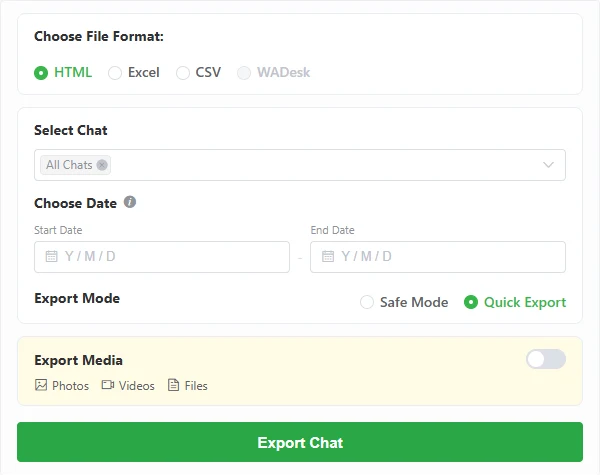
The panel controls format, chats, date range and media in one place.
To save available media with your conversations:
- Select the chats and date range.
- Choose your export format and mode.
- Locate Export Media Files.
- Turn on the switch.
- Proceed with the conversation export.
One switch covers photos, videos, and files together. There is no need to configure separate export options for each media type.
This can help when you want to download photos from WhatsApp while preserving the original conversation, retain shared videos with their related messages, or save available documents alongside chat history.
However, this is not a standalone photo-only or video-only bulk download feature. WAExport exports supported media together with the selected conversations.
Media export requires Max access, and files must remain accessible for successful retrieval. Always check the results after exporting.
Step 6: Export and Open Your Saved Conversations
Once you've configured your settings, click Export Chat History.
Allow the process to finish. Export time can vary depending on the number of conversations, messages, and accessible attachments.
Afterward, locate the downloaded result on your computer.
Open HTML files in a browser, Excel files in compatible spreadsheet software, or CSV files in an appropriate application.
If you enabled media export, inspect the output to confirm that the expected photos, videos, and documents were included.
For important conversations, consider keeping an additional secure copy. Chat exports may contain personal information, so avoid storing sensitive files in publicly accessible locations.
Why Save WhatsApp Conversations with Photos and Videos?
Downloading WhatsApp messages is useful for more than preserving written conversations.
Keeping messages and available media together can make an exported record easier to understand and use later.
Preserve Personal Conversations and Memories
Family and friend conversations often include meaningful photos, videos, and messages.
Saving the conversation with its available media can help preserve the context surrounding those shared memories.
Organize Business Conversations
Business chats may contain customer discussions, instructions, screenshots, and documents.
Exporting the conversation can help you review communication records outside WhatsApp, while spreadsheet formats can be useful for organizing message data.
Keep Shared Files with Their Context
A photo or document may be difficult to understand without the messages surrounding it.
For example, a project image may have been shared with instructions or feedback.
Preserving the conversation alongside accessible media can make those files more useful for future reference.
How to Download WhatsApp Messages on Android and iPhone
If you prefer using your phone, WhatsApp provides a built-in chat export feature.
On Android
- Open WhatsApp and select the conversation.
- Tap the three-dot menu.
- Choose More, then Export chat.
- Select whether to include media, if prompted.
- Save or share the exported result.
On iPhone
- Open WhatsApp and select a conversation.
- Tap the contact or group name.
- Select Export Chat.
- Choose whether to attach media, if prompted.
- Save or share the exported file.
Menu names may vary by WhatsApp version.
The built-in feature is convenient for exporting individual conversations from your phone. If you want to work directly from WhatsApp Web, select date ranges, or use HTML, Excel, and CSV, WAExport provides a different workflow.
Frequently Asked Questions
Can I download an entire WhatsApp conversation?
Yes. WhatsApp provides a built-in export feature, while WAExport allows you to select conversations and date ranges from WhatsApp Web. The completeness of the result depends on which messages are available to the export method.
Can I download WhatsApp messages with photos and videos?
Yes. WAExport provides an option to include accessible photos, videos, and documents with exported conversations. Media export requires Max access, and files must remain accessible for successful retrieval.
Can I download photos and videos from WhatsApp separately?
WhatsApp itself provides ways to save individual media items. WAExport's media option, however, is designed to include supported media with exported chat history rather than separately exporting photos or videos.
Can I download WhatsApp messages to Excel or CSV?
Yes. WAExport supports Excel and CSV, which can help you organize and process exported chat records on your computer.
Does exporting WhatsApp conversations delete the original messages?
No. Exporting normally creates a separate copy without deleting the original conversation from WhatsApp.
Can I restore exported conversations into WhatsApp?
No. HTML, Excel, and CSV exports are intended for viewing and recordkeeping, not for directly restoring messages into WhatsApp.
Choose the Method That Fits How You Work
Whether you want to preserve personal conversations, save photos and videos shared in chats, or organize business communication records, downloading WhatsApp messages can help you keep important information accessible.
WhatsApp's built-in export feature is suitable for saving conversations from Android or iPhone. For a computer-based workflow, a WhatsApp chat exporter like WAExport lets you save selected conversations in HTML, Excel, or CSV format and include available photos, videos, and documents when media export is enabled.
Choose the method that fits your needs, and review the exported results to make sure your conversations and important attachments have been saved.
5 Best WhatsApp Chat Export Tools in 2026
Which WhatsApp chat export tool is worth using in 2026? Compare WAExport, iMazing, Tenorshare, Dr.Fone and an open-source option before you decide.
How to Export All WhatsApp Chats at Once
Still exporting WhatsApp chats one by one? Use WAExport to select multiple chats or All Chats, set a date range, and save the results to your computer.