How to Export All WhatsApp Chats at Once
Saving one conversation is manageable. Saving several project discussions, customer conversations or group chats can mean repeating the same choices over and over. When you need a regular archive, selecting conversations together is more practical than preparing a separate export for each one.
If you want to export whatsapp chat records across multiple conversations, start by deciding what belongs in this batch: a handful of selected chats, or every chat the extension can currently list. That decision matters as much as the file format.
In this guide, all chats means the chats WAExport can list and access through your current WhatsApp Web session. It does not mean every historical message ever associated with your account. Deleted or inaccessible content is not recovered by selecting All Chats.
What does a bulk WhatsApp export actually produce?
Bulk export lets you select several conversations and apply the same settings in one export run. You can choose specific chats or use All Chats. The extension then processes the selected conversations one after another; it does not download every conversation simultaneously.
There is another important distinction: one task does not mean one combined file. WAExport saves results by chat, rather than automatically merging every conversation into a master spreadsheet. Keeping these boundaries makes it easier to review which conversation a file belongs to.
Choose HTML for a readable archive, or Excel/CSV for spreadsheet work. These are files for use outside WhatsApp, not a restorable phone backup or a device-migration package. Decide whether you need reading copies or tabular records before starting a large batch.
How to bulk export chats with WAExport
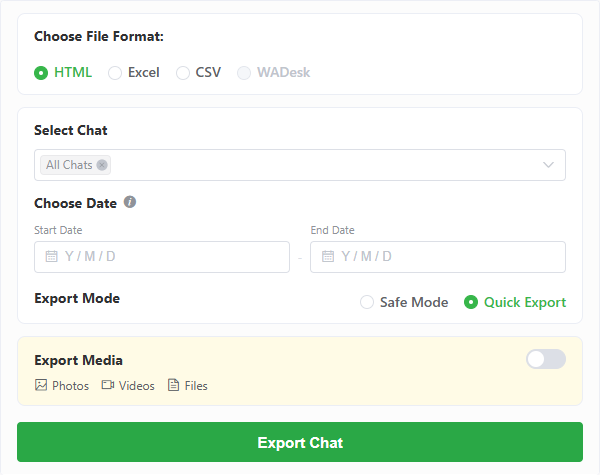
WAExport provides a browser-based workflow with chat selection, file formats, dates and export modes in the same panel. Start with a small selection to check that the resulting files suit your needs before choosing every available conversation.
1. Open your account in WhatsApp Web
Install the extension from the WAExport homepage and open WhatsApp Web in the browser where it is installed. Sign in to the intended account and confirm that the conversations you need are accessible.
Check the account before selecting a large batch, especially if you work with more than one WhatsApp account. Only export conversations you are authorized to handle, and choose a storage location appropriate for their contents.
2. Select multiple chats or All Chats
Open the export panel and use the chat selector to choose the conversations you want. Choose All Chats when your intention is to process the entire available list instead of a specific subset.
Before you export whatsapp chat records in bulk, review that selection. A focused batch is often easier to verify than a mixture of unrelated work and personal conversations. Selecting all chats broadens the target list; it does not remove access restrictions or guarantee complete history.
3. Choose one output format for the batch
Select HTML, Excel or CSV. The chosen format applies to this run, so think about what you will do with the files afterward. HTML suits reading individual conversations; Excel and CSV suit organizing records in compatible spreadsheet software.
If you need a second format, treat it as another export and use a separate destination folder. Do not expect a single run to produce all three formats or an automatically consolidated workbook.
4. Set the dates and media options
Apply a start and end date if you only need a particular period. The same date selection is used across the chosen chats. A conversation without accessible messages in that range may not produce the result you expected from its name alone.
5. Choose the processing mode
Safe Mode slows down chat-history retrieval and adds intervals, with the aim of reducing the risk of account bans. Quick Export retrieves chat history at a faster pace. Safe Mode does not guarantee that account restrictions or bans will be avoided.
For a larger selection, allow time for chats to be handled sequentially. Media can add work to each conversation, so the number of selected chats alone is not a reliable estimate of completion time.
6. Start the export and choose where to save it
Start the task and select a destination when the browser requests one. Grant the requested access to that folder so the extension can write the files. A separate folder for each run helps keep older and newer results apart.
Keep the browser session available while processing. Watch the task status rather than assuming that files appearing in the folder mean the whole batch has finished. Stopping the task or exhausting the remaining allowance can leave a partial export.
How to check a batch without overlooking missing chats
Compare the selection with the saved results
Review the conversations you intended to save against the results in the destination. Open files from several different chats, not just the first one. A completed file confirms that particular output exists; it does not establish that every selected chat succeeded.
If a conversation is missing, check whether it had accessible messages within your selected dates before retrying. Also review any error or interruption shown during processing. Avoid assuming that an absent file proves the conversation was empty.
Understand the per-chat layout
The current exporter creates folders by chat. For HTML output, it also creates an index.html entry point for the exported chat pages. Excel and CSV output is saved by conversation, not as one combined sheet containing the whole selection.
Keep related HTML resources and downloaded media together when moving an archive. Renaming or separating supporting files can affect how an HTML page displays. The files actually produced by your run remain the reference for what was saved.
Sample the content, not just the filenames
Check a few messages near the beginning and end of the requested period in different conversations. Compare them with what you can access in WhatsApp Web. For spreadsheet output, also check dates, text and character display in your chosen application.
When media was enabled, open a sample of the attachments rather than counting filenames alone. Successful message export does not establish that every attachment was available or downloaded. Protect these local copies as carefully as the original conversations.
Separate incomplete work from completed archives
Partial results can follow a failed chat, a stopped task or an exhausted allowance. Identify the affected conversations before trying again. Use a new destination for the next attempt so you can distinguish its files from the earlier batch.
Do not assume that another run resumes automatically, removes duplicates or fills every gap. Select the chats that still need attention and verify the new output independently. This keeps a retry from becoming an unreviewed mixture of old and new files.
Common bulk export problems
| What you notice | What to check |
|---|---|
| Some chats have no output | Confirm the selection, accessible messages within the date range, folder access and any chat-specific failure. |
| The task ends before all chats are processed | Review whether you stopped it, an error occurred or the batch exhausted the remaining allowance. |
| Older messages are missing | Recheck the start date and whether those messages are accessible through the current web session. All Chats is not a history-recovery option. |
| Media is absent | Check Max access, the media switch and attachment availability. Text output alone does not confirm media completion. |
| A large batch takes longer | Chats are processed sequentially; message volume, media and the chosen mode affect the work involved. Check progress before launching another run. |
Frequently asked questions
Can I export only a few chats together?
Yes. Use multiple chat selection instead of All Chats. A smaller first batch is also useful for checking your format, date range and destination before processing a wider selection.
Does All Chats include every historical message?
No. It selects the available chat list. Message availability, the date range and applicable limits still affect the output. It cannot recover deleted or inaccessible content.
Will bulk export merge the conversations into one file?
No. The current workflow saves results by chat. HTML has an entry page, but that is navigation between exported conversations, not a single merged transcript or spreadsheet.
Can I use the same dates for all selected chats?
Yes. Set the dates before starting the batch. If different conversations need different periods, organize them into separate runs and keep their destinations distinct.
Why did only part of my selection export?
Check the task status, remaining allowance, selected dates and chat availability. Some files may already exist even when the rest of the batch was interrupted or could not finish.
Can I restore these files into WhatsApp?
No. HTML, Excel and CSV are external archives. Restoring messages or moving to another phone requires an appropriate backup or transfer workflow, not importing these exports.
Choose the scope, run the batch, review the results
Bulk export removes repeated setup, but reviewing the output is still essential. Choose the right conversations, apply a useful date range and check which files were actually saved. When you are ready to export whatsapp chat records in a batch, begin with a manageable selection, then expand it once the output matches your needs.
5 Best WhatsApp Chat Export Tools in 2026
Which WhatsApp chat export tool is worth using in 2026? Compare WAExport, iMazing, Tenorshare, Dr.Fone and an open-source option before you decide.
WAExport vs iMazing: Which WhatsApp Chat Exporter Fits You in 2026?
WAExport or iMazing—which one fits your WhatsApp export workflow? Compare browser access, iPhone backups, formats, media, filtering and setup before choosing.