How to Export WhatsApp Chats to Excel and Organize Your Messages
A conversation is easy to read until you need to organize it. You might need a customer's questions, one month's project updates or outgoing replies separated from incoming messages. Copying messages manually takes time and can disconnect text from its sender and timestamp.
A whatsapp chat extractor can turn accessible conversations into files for this kind of work. But downloading a workbook is only the beginning: understanding its columns and checking the time values matter before you sort anything. This guide follows that workflow from WhatsApp Web to a working Excel copy, not a restorable backup or a method for recovering deleted messages.
Direct Excel export or TXT conversion?
WAExport generates an .xlsx file from chats accessible in your current WhatsApp Web session. You do not first upload a phone-exported TXT file. Converting an existing TXT conversation into a spreadsheet is a different workflow, with its own parsing and date-format considerations; WAExport is not a TXT upload converter.
Choose Excel for organizing records, or HTML for continuous reading. CSV contains tabular text for import into compatible software, but it is not an Excel workbook and does not preserve workbook formatting. Choose the output for your next task.
Export a WhatsApp chat to Excel with WAExport
WAExport provides chat selection, dates and file-format controls alongside WhatsApp Web. Start with one conversation and a short period so you can inspect the resulting workbook before exporting more.
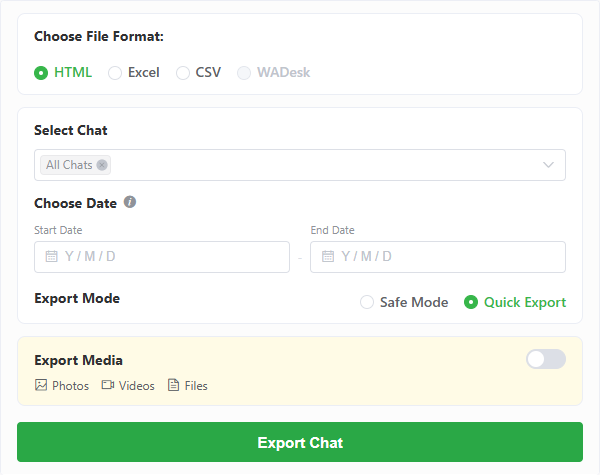
1. Open the right chat and choose Excel
Install the extension through the homepage and open WhatsApp Web in the same browser. Sign in to the intended account and confirm that the conversation is accessible. Only export records you are authorized to handle.
In the export panel, select the chat and choose Excel. The whatsapp chat extractor uses that selection as its source; it does not retrieve unavailable history simply because you choose a spreadsheet format.
2. Set the dates and processing options
Set the start and end dates for the period you need. Choose supported media options if attachments matter to your task and your plan includes them. A spreadsheet can describe a media message without containing the attachment itself.
Safe Mode slows chat-history retrieval and adds intervals with the aim of reducing account-ban risk. It does not guarantee that restrictions will be avoided. Quick Export uses a faster retrieval pace; neither mode restores deleted or inaccessible messages.
3. Export and open the saved workbook
Start the task, choose a destination when prompted and allow the browser to write the files. Keep the session available while processing. Task interruptions or an exhausted allowance can leave partial results.
Open the .xlsx file inside the corresponding chat folder. Multiple selected chats are saved separately, not automatically combined into one master workbook. Check the conversation and date range before treating the file as ready for analysis.
Understand the seven columns before editing
The current export uses a worksheet named Chat History. Column labels follow the extension language; the English labels and their purposes are:
| Column | What to check |
|---|---|
| Username | Sender information available to the extension; your own messages use a localized “You” label. |
| Phone Number | Available sender number; some cells, including your own outgoing rows, may be blank. |
| Sent Message | Outgoing message text or a representation of its content. |
| Received Message | Incoming message text or a representation of its content. |
| Message Type | The underlying message type, useful when separating text and media records. |
| Message Time | Local time written as text in YYYY/MM/DD HH:mm:ss form. |
| Attachment Link | A path or link when an attachment was saved, not embedded media. |
Sent and received content occupy separate columns. An empty cell on the opposite side is normal, not necessarily a missing message. Media rows may contain a caption or a type label rather than the file's contents.
Names and phone numbers depend on available data. Treat phone numbers as identifiers, not quantities to calculate: converting them into numbers can change their representation.
Organize the messages in Excel
The following steps are Excel operations, not built-in WAExport analysis features. Menu names can differ by Excel version and language.
Keep the original and make a working copy
Save a separate working copy before editing. Keep the original chat folder and any companion media together. Use a clearly labeled location for the edited workbook, and limit access to people who need the conversation.
Make long messages readable
Use View → Freeze Panes → Freeze Top Row to keep headers visible while scrolling. Widen the message columns and enable Home → Wrap Text for their cells. If text is still clipped, adjust or automatically fit row heights. These changes improve reading without changing the underlying messages.
Filter the complete data area
Select the full populated range, including all seven headers, then use Data → Filter. Check that the range reaches the last message; blank cells in individual columns should not make you leave out other rows.
Filter Username to focus on a sender or Message Type to inspect one kind of record. For a keyword, apply a text filter to Sent Message or Received Message according to the direction you need. Filters across both columns combine conditions: searching each direction separately avoids unintentionally hiding the results. Clear filters when you want the complete view again; hidden rows have not been deleted.
Check time values before sorting
The exported Message Time values are strings, not automatically native Excel dates. Consistent year-first strings can sort chronologically as text, but that does not make date arithmetic or native Date Filters available.
Sort the complete range by Message Time, not the time column alone. If Excel asks whether to expand the selection, include the related columns. Otherwise, timestamps can become detached from their messages and senders. Check a few rows at the beginning and end afterward.
Convert dates only when the task needs it
For native date filters or calculations, preserve the original time column and convert a copy with a date-time conversion method that recognizes the year/month/day order. For example, Excel versions with Power Query can convert a copied time column to Date/Time using an appropriate locale. Verify several results against the originals, including the time of day, before relying on the conversion.
Changing a cell's display format alone does not convert stored text into a date value. If you only need a fixed period, selecting it in WAExport before export may be simpler. The export uses the computer's local time representation; it does not include a separate timezone column, so record that context when comparing files from different computers.
Keep chats and batches separate
Name working copies by conversation and export period. Keep different runs in separate folders so similar filenames are not mistaken for the same dataset. WAExport does not automatically merge workbooks or deduplicate overlapping exports. Do not delete repeated text just because it looks identical: separate messages can legitimately contain the same words.
When the spreadsheet does not look right
| What you notice | What to check |
|---|---|
| Dates sort unexpectedly | Inspect whether values are text or dates, and whether the complete range was sorted. |
| Some messages are absent | Check selected dates, web-accessible history, task status and remaining allowance. |
| Sent or received cells are empty | Compare the message direction; the export separates outgoing and incoming content. |
| An attachment will not open | Confirm it was exported and that companion files have not been moved or deleted. |
| Chats are in different files | This is the per-chat output structure, not a failed automatic merge. |
A workbook opening successfully does not prove that all account history was exported. Compare a few accessible messages with the source chat. If the records are incomplete, identify the scope or processing issue before starting another export.
Frequently asked questions
Can WAExport export directly to XLSX?
Yes. Choose Excel in the extension to generate an .xlsx workbook from accessible WhatsApp Web chats. It does not require uploading a TXT file first.
How is Excel different from CSV?
XLSX is a workbook format; CSV stores tabular text. CSV may need import settings and does not retain workbook presentation. Both are external records, not WhatsApp restore files.
Can I filter by sender or date?
Use Excel's filters for the available sender fields. Select dates before exporting, or convert a copy of the time text appropriately if you need native Excel date filters afterward.
Are photos and videos embedded in Excel?
No. The attachment column provides paths or links when files were saved. Keep the relevant media with the export and check that links still resolve.
Will several chats become one workbook?
No. The current workflow saves files by chat. Any later consolidation is a separate task, not an automatic export feature.
Can I import the workbook back into WhatsApp?
No. The file is for reading and organizing outside WhatsApp, not restoring a live conversation or transferring an account.
From exported chat to usable records
Choose a relevant conversation and period, inspect the columns, then organize a copy without changing the source archive. If that is the workflow you need, explore the whatsapp chat extractor and start with one manageable chat before expanding your export.
How to Export All WhatsApp Chats at Once
Still exporting WhatsApp chats one by one? Use WAExport to select multiple chats or All Chats, set a date range, and save the results to your computer.
WAExport vs iMazing: Which WhatsApp Chat Exporter Fits You in 2026?
WAExport or iMazing—which one fits your WhatsApp export workflow? Compare browser access, iPhone backups, formats, media, filtering and setup before choosing.