How to Export a WhatsApp Group Chat: Messages, Senders & Media
A project group can move from a question to a decision through photos, corrections and overlapping replies. Copying messages into a document may preserve the words but lose the sender, time and related attachment. Those details matter when someone later reviews the discussion.
A whatsapp chat export extension saves accessible conversations as local files, keeping messages connected to senders, times and available attachments. This guide covers groups you are authorized to export and can access in WhatsApp Web, not recovering unavailable history.
A group chat export is not a group member list
When you export WhatsApp group chat records, the starting point is the messages available for that conversation and period. Sender information helps explain those messages. A member-list export serves a different purpose: collecting information about the group's participants.
These are not interchangeable datasets. Someone who did not write during the selected period may have no message in your file. Someone who wrote earlier may no longer belong to the group. You cannot reconstruct a complete, current member directory just by collecting names from exported messages.
The output is also an independent archive, not a restorable WhatsApp backup. HTML, Excel and CSV files help you read or review a conversation outside the app; they do not recreate the live group on another phone.
How to export a group chat with WAExport
WAExport adds format, chat, date and media controls alongside WhatsApp Web. Begin with one group and a short date range so you can compare the file with the original before saving a longer period.
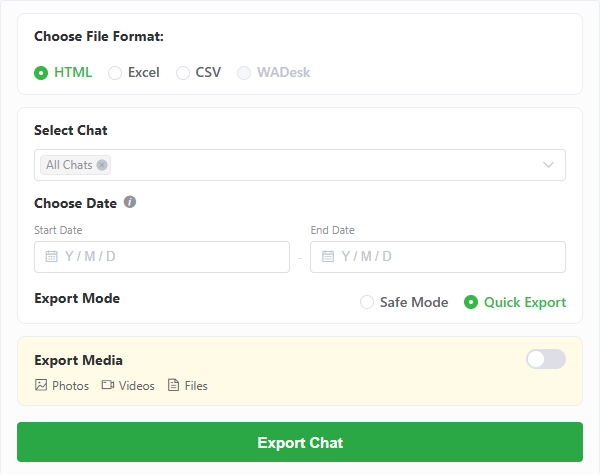
The WAExport settings panel, not a screenshot of an exported group conversation.
1. Open the correct WhatsApp Web account
Install through the homepage, then open WhatsApp Web in Chrome with the account that can access the group. The extension runs in the browser, not the separate WhatsApp desktop application. Confirm your permission to save the conversation.
2. Select the group, not a similarly named conversation
Open the whatsapp chat export extension and select the intended group. If names are similar, check the conversation in WhatsApp Web first. Select only that group for this initial task to keep results easy to identify.
3. Choose a format for the next reader
Choose HTML for reading the conversation in a browser. Choose Excel or CSV when you need message rows for review in compatible spreadsheet software. CSV is not an Excel workbook, and a table of messages is not a member directory. Pick the format before starting rather than expecting one export to produce every format.
4. Set the period and media options
Set the start and end dates around the discussion you need. Leave enough context for short replies to make sense. Enable supported media if you need the attachments and your plan allows it; media export requires Max. A selected date range does not make inaccessible messages available.
5. Choose the pace and save location
Safe Mode slows chat-history retrieval and adds intervals with the aim of reducing account-ban risk, but it does not guarantee that restrictions will be avoided. Quick Export uses a faster pace. Start the task, choose a save location when prompted and keep the browser session available while it processes the conversation.
6. Open the group's saved files
Find the corresponding group folder in your selected location. Open the HTML archive in a browser or the Excel/CSV file in compatible software. Keep the folder's companion files together. A finished download is the starting point for checking the result, not proof that every historical message was included.
Check who sent each message
Compare a short exchange with several speakers against WhatsApp Web. Include your own reply and, if available, an attachment to check attribution, sequence and media without reviewing the entire group.
Names, numbers and identifiers have limits
In HTML, incoming group messages can show a sender label using available contact information. A name, number or identifier may appear, depending on what the extension can resolve. Do not expect every message to carry both a full name and a verified phone number.
For Excel/CSV, the current output includes Username and Phone Number fields, whose labels follow the extension language. A name can be blank; a fallback identifier should not automatically be treated as a usable telephone number. Two matching display names also do not establish that two records belong to the same person. Check the surrounding conversation instead of merging identities by name alone.
Your own messages are handled differently
In the current spreadsheet output, your outgoing messages use a localized “You” label. Their phone-number field may be empty. Outgoing text goes in Sent Message, while incoming text goes in Received Message, so an empty cell on the other side is normally expected.
Read the direction and content together before marking a row incomplete. HTML presents outgoing and incoming messages differently rather than using those two spreadsheet columns. Neither layout should be read as a verified record of current group membership.
Check time and context together
The spreadsheet writes message times as local-time text in YYYY/MM/DD HH:mm:ss form. Do not assume those cells are native Excel dates or that changing their display format converts them. Compare the exported times with the source before sorting or sharing a timeline.
Keep nearby messages around an important answer. A standalone “yes” can be misleading if the preceding question falls outside your selected dates. If essential context is absent, label the saved period accurately rather than presenting the file as the group's complete history.
Keep messages and media together
A media message can appear in the record even when its attachment was not saved. The text may be a caption or a media-type label, not the photo, video or document itself. Check at least one attachment you actually need by opening the saved file.
In Excel/CSV, Attachment Link contains a path or link when media was saved. It does not mean a picture or video is embedded in the cell. For HTML, keep the required supporting files with the archive so local media references continue to work.
Before moving or sharing the export, preserve the relative folder structure and try opening it from the new location. Sending only the spreadsheet or HTML file can leave the recipient without its attachments. WAExport does not promise to recover deleted, expired or inaccessible media.
Review the group export before relying on it
Use this checklist to separate missing data from normal output behavior. Check the selected group and dates first, then compare a few messages near the beginning and end of the saved period.
| What you notice | What to check |
|---|---|
| A sender name is blank or unfamiliar | Compare the message with WhatsApp Web. Available contact details may be incomplete, and identifiers are not verified names or numbers. |
| Messages before a certain date are absent | Check the selected date range and whether the older messages are accessible in the current web session. |
| A media record exists but its attachment will not open | Check media selection, plan permission, attachment availability and whether companion files were moved. |
| Only part of the expected conversation was saved | Review task status, browser save permission and the remaining export allowance. An interruption can leave partial files. |
| A group member has no messages in the file | Check whether they wrote within the selected, accessible period. Absence from the export does not establish absence from the group. |
Keep an untouched original and annotate a working copy. Note the group and selected period. The extension does not provide an automated completeness certificate.
Before exporting or sharing a group conversation
Group files can contain other people's names, numbers and attachments. Save only authorized material and share only what the recipient needs. Review the working copy before distribution and restrict access to the original.
WhatsApp says Advanced Chat Privacy can restrict chat exports. Respect those restrictions and the group's expectations. This workflow is not a promise that WAExport can bypass privacy controls or retrieve information your account cannot access.
Frequently asked questions
Is exporting a group chat the same as exporting its members?
No. A chat export records available messages and related sender information. Silent members may not appear, and older speakers may have left. It is not a complete current member list.
Can I see who sent every message?
The export uses available sender information, but names, numbers or labels can be missing. Check representative messages against the source rather than treating every label as verified identity.
Can I export only a specific date range?
Yes. Select the dates before starting. Include enough surrounding discussion for the messages to remain understandable; the range does not extend what WhatsApp Web makes accessible.
Why are older messages or some attachments missing?
Check dates, accessible history, task status and allowance. For attachments, also check media options, plan permission and file availability. Downloading a file does not prove the archive is complete.
Can the exported files be restored into WhatsApp?
No. They are local files for reading or review, not a WhatsApp restore package. They cannot recreate the group as a live conversation in the app.
Save the conversation, then verify the context
Choose the right group, limit the period and check senders alongside the messages and attachments. When you need that browser-based workflow, the whatsapp chat export extension provides the settings for creating a local copy. Start with a short exchange you can verify, then expand the period if the result meets your needs.
How to Export WhatsApp Chats to Excel and Organize Your Messages
Need WhatsApp messages in a spreadsheet? Export chats directly to Excel with WAExport, then check dates, filter senders and organize your records.
How to See Deleted Messages on WhatsApp Web: Chat Export Guide
WhatsApp Web can't reveal messages deleted for everyone. See which saved copies may help — earlier exports and backups — and how to prevent future loss with WAExport.