How to Save WhatsApp Status Photos and Videos: 4 Methods
WhatsApp Status photos and videos disappear after 24 hours. Whether you want to download WhatsApp Status individually or save multiple updates with a Status saver for WhatsApp, this guide covers four easy ways to save WhatsApp Status on iPhone, Android, and PC before they're gone.
Quick Answer: 4 methods
- Phone screenshot: Save Status photos.
- Phone screen recording: Save Status videos.
- Android temporary files: Copy accessible cached photos and videos.
- WAExport on PC: Download available Status updates in bulk.
4 Ways to Save WhatsApp Status Photos and Videos
Method 1 — Save WhatsApp Status with a Screenshot
Taking a screenshot is the simplest way to save WhatsApp Status photos. It works on both iPhone and Android and doesn't require any additional software.
On iPhone:
- Open WhatsApp and go to the Updates tab.
- Tap the Status you want to save.
- Press the Side button and Volume Up button simultaneously on iPhones with Face ID.
- Find the screenshot in your Photos app.
On Android:
- Open WhatsApp and view the desired Status.
- Press the Power and Volume Down buttons simultaneously.
- Open your Gallery or Google Photos to find the screenshot.
You can crop the image afterward to remove unnecessary elements.
Best for: Saving individual Status photos quickly.
Limitations: Screenshots may reduce image quality and cannot preserve moving videos.
Method 2 — Save WhatsApp Status Videos with Screen Recording
If you want to save WhatsApp Status videos without taking screenshots, screen recording is one of the easiest methods. Both iPhone and Android have built-in screen recording features.
Steps:
- Open WhatsApp and find the Status video you want to save.
- Open Control Center (iPhone) or Quick Settings (Android).
- Tap Screen Recording or Screen Recorder to start recording.
- Play the WhatsApp Status video.
- Stop recording and find the saved video in your Photos or Gallery app.
You can trim the recording afterward to remove unnecessary footage.
Best for: Saving WhatsApp Status videos on iPhone and Android without installing additional apps.
Limitations: Video quality and audio recording availability may vary depending on your device.
If you need the original photo or video quality, asking the person who posted the Status to share the file directly is usually the better option.
Method 3 — Download WhatsApp Status from Android Storage
Android users may be able to access temporary WhatsApp Status media files directly through their phone's file manager.
This method can help you download WhatsApp Status photos and videos without screenshots or screen recordings.
Step 1: View the Status
Open WhatsApp and watch the Status you want to save. On some Android devices, viewed Status media may be temporarily stored in a hidden folder.
Step 2: Open Your File Manager
Open your phone's file manager and enable Show Hidden Files in its settings.
Step 3: Find the WhatsApp Status Folder
Depending on your Android version, the folder may be located at:
Internal Storage > Android > media > com.whatsapp > WhatsApp > Media > .Statuses
Step 4: Copy the Files
- Find the photo or video you want to save.
- Select the file and tap Copy.
- Paste it into your Downloads, Pictures, or Videos folder.
This creates a separate copy of the media file.
Best for: Android users who want to save Status photos and videos without recording their screens.
Limitations: The Status folder may be hidden, inaccessible, or empty on certain Android versions. Temporary files may also be removed automatically.
Method 4 — Download WhatsApp Status on PC with WAExport
Use WAExport in Chrome to download Status updates currently visible to your WhatsApp account. In its Status tab, filter by images, videos or text, then select the items you want to save.
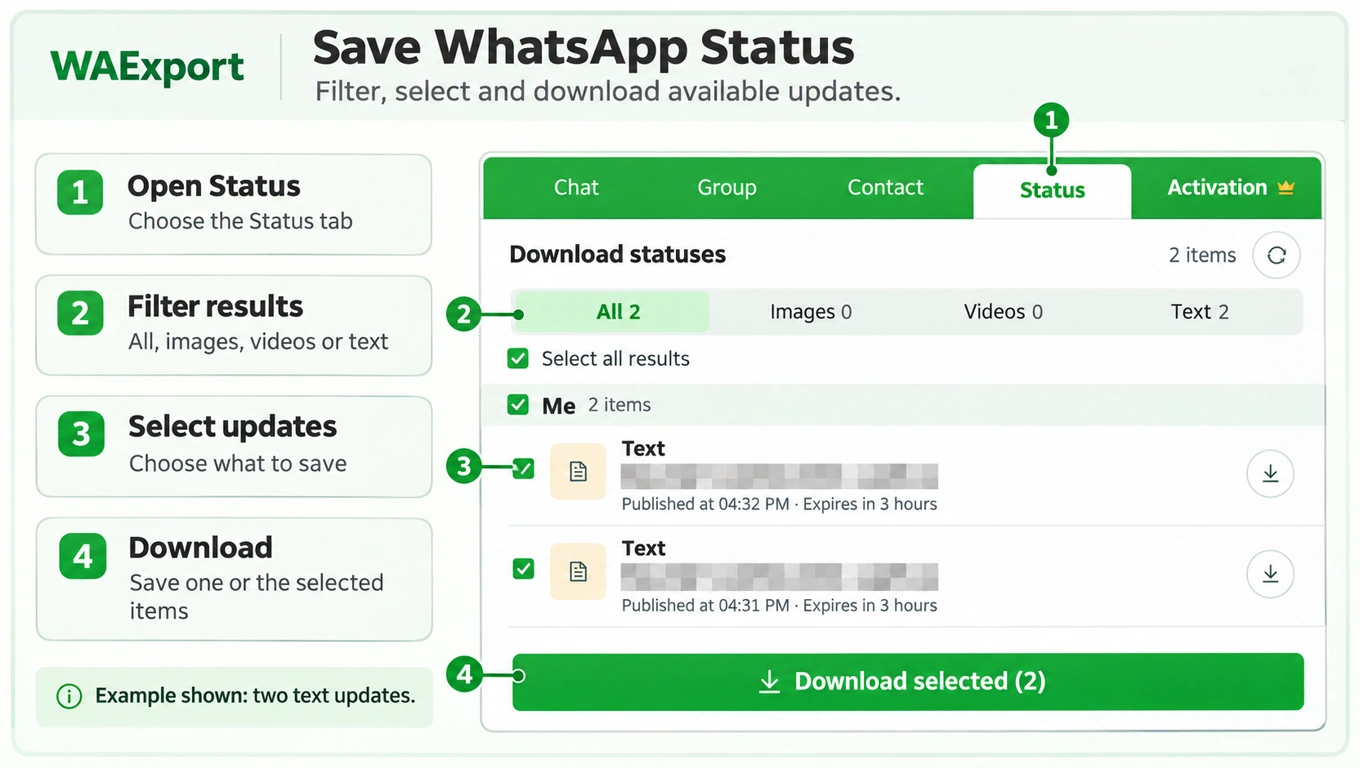
- Install WAExport and open WhatsApp Web in Chrome.
- Choose the Status tab.
- Use All, Images, Videos or Text to filter the available results.
- Tick individual updates, or use Select all results.
- Click Download selected to save the selected items.
- Open the downloaded files and check that they contain what you need.
You can also use the round download button beside an individual update. The example above contains two text updates. Photos and videos can be downloaded when those items are available to the current account.
Only currently accessible updates can be saved. WAExport does not recover expired or unavailable Status content, and download allowances depend on your plan.
If a customer shares prices, specifications or documents in a related conversation, use the extension's Chat tab for WhatsApp chat export. That separate workflow saves message records as HTML, Excel or CSV, with supported chat media according to your settings and plan.
Which Method Is Best for Saving WhatsApp Status?
The best method depends on your device and whether you want to save photos or videos.
| Method | Device | Best For | Extra App Needed |
|---|---|---|---|
| Screenshot | iPhone, Android | Photos | No |
| Screen Recording | iPhone, Android | Videos | No |
| Android Storage | Android | Photos and videos | Usually no |
| WAExport | PC | Download available photos, videos and text updates | Chrome extension required |
On your phone, use a screenshot for photos or screen recording for videos. Android users can also check accessible temporary files. On a PC, use WAExport to download available Status updates.
Remember to respect the original poster's privacy, especially before sharing or redistributing their content.
FAQs About Saving WhatsApp Status
1. How Can I Save WhatsApp Status Without Taking Screenshots?
Use WAExport in Chrome on your PC to download available Status updates in bulk. Open its Status tab, select the photos or videos you need, and click Download selected.
The files must still be accessible to your account; WAExport cannot recover expired or unavailable Status updates.
2. Can I Download WhatsApp Status After 24 Hours?
Generally, no. WhatsApp Status updates disappear after 24 hours, and WhatsApp doesn't provide a built-in option for downloading expired Status updates from other contacts.
However, if you previously saved the content or the original poster still has the file, you may be able to access it again.
3. Does WhatsApp Notify Someone When I Save Their Status?
WhatsApp doesn't normally send a separate notification when you take a screenshot or screen recording of a Status.
However, the person who posted it may still see that you've viewed their Status, depending on read receipt settings.
4. Can I Save WhatsApp Status in Original Quality?
Screenshots and screen recordings may reduce image or video quality.
On some Android devices, copying an accessible Status media file can avoid additional screen-capture quality loss. Otherwise, asking the sender for the original file is the most reliable option.
Conclusion
There are several simple ways to save WhatsApp Status photos and videos on iPhone, Android, and PC.
On your phone, screenshots are useful for photos and screen recording works for videos. Android users can check temporary Status files. On a PC, use WAExport to download available updates.
Choose the method that best fits your device and save important content before the Status expires.
How to Export a WhatsApp Group Chat: Messages, Senders & Media
Need to save a busy WhatsApp group chat? Export messages with WAExport, check who sent them, and keep available media with your conversation files.
How to See Deleted Messages on WhatsApp Web: Chat Export Guide
WhatsApp Web can't reveal messages deleted for everyone. See which saved copies may help — earlier exports and backups — and how to prevent future loss with WAExport.