How to View Exported WhatsApp Chats and Read Them Easily
Exporting a WhatsApp chat is a useful way to save important conversations, preserve business records, or keep personal memories. If you want to download WhatsApp chat messages for future reference, you may wonder how to view the exported files, especially when you find a TXT file or a ZIP archive containing media attachments.
Common questions include:
- How can I open and read my exported WhatsApp chats?
- Why do my messages appear as plain text instead of chat bubbles?
- How can I view exported photos, videos, and voice messages?
- Can I view my conversations in a more readable format?
In this guide, we'll show you how to open exported WhatsApp chats in TXT and ZIP formats, access media attachments, and create a browser-friendly HTML chat archive using WAExport.
How to View Exported WhatsApp Chats
Start by identifying the file format. Here are three common situations:
| Export format | Export method | How to view it | Reading experience |
|---|---|---|---|
| TXT | WhatsApp's built-in export | Text editor | Plain-text messages without chat bubbles |
| ZIP | WhatsApp's built-in export | Extract, then open the files | Messages and media in separate files |
| HTML | WAExport Chrome extension | Web browser | Chat-style layout with supported media attachments |
All three let you read the messages. Only HTML shows the conversation the way WhatsApp did, which is why it is worth the extra step.
Quick answer: open a TXT file with a text editor, extract a ZIP archive first, and open an HTML archive directly in a browser. The following sections explain each format.
Method 1: Open Exported WhatsApp Chats as TXT Files
WhatsApp official export supports TXT and ZIP chat files. TXT files are easy to store and open, but their formatting is basic. Use the steps below to view your chat if you have a TXT export.
1. Find the exported chat file
Locate the exported file on your computer — check your Downloads folder, email attachments, or wherever you saved it — and look for a file ending in .txt.
2. Open the file with a text editor
Use Notepad on Windows or TextEdit on macOS. The file shows the conversation as text, with timestamps, sender names and message content.
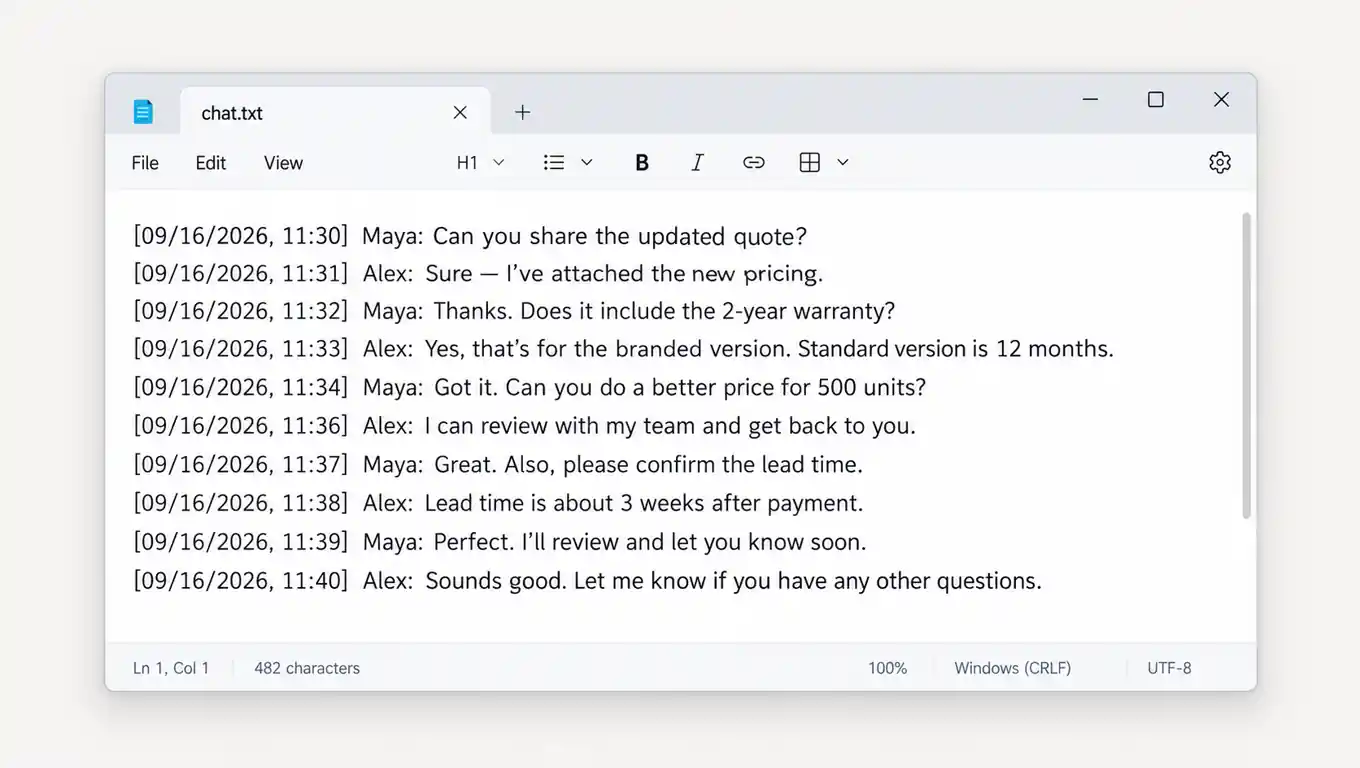
The same conversation as plain text: timestamps and sender names in every line, no chat bubbles, no media.
3. Search for important messages
Use your editor's search function to find specific names, dates or phrases without reading the entire file.
Limitations of TXT chat exports
- No chat-bubble layout.
- Media is not shown with the messages.
- Long conversations are hard to navigate.
If readability is your priority, consider an HTML archive instead — WAExport builds one you can open in any browser.
Method 2: How to Open an Exported WhatsApp ZIP File
Some WhatsApp exports are packaged as ZIP archives when media is included. A ZIP file is a compressed container, not a chat viewer.
1. Extract the archive
On Windows, right-click and select Extract All. On macOS, double-click the ZIP file.
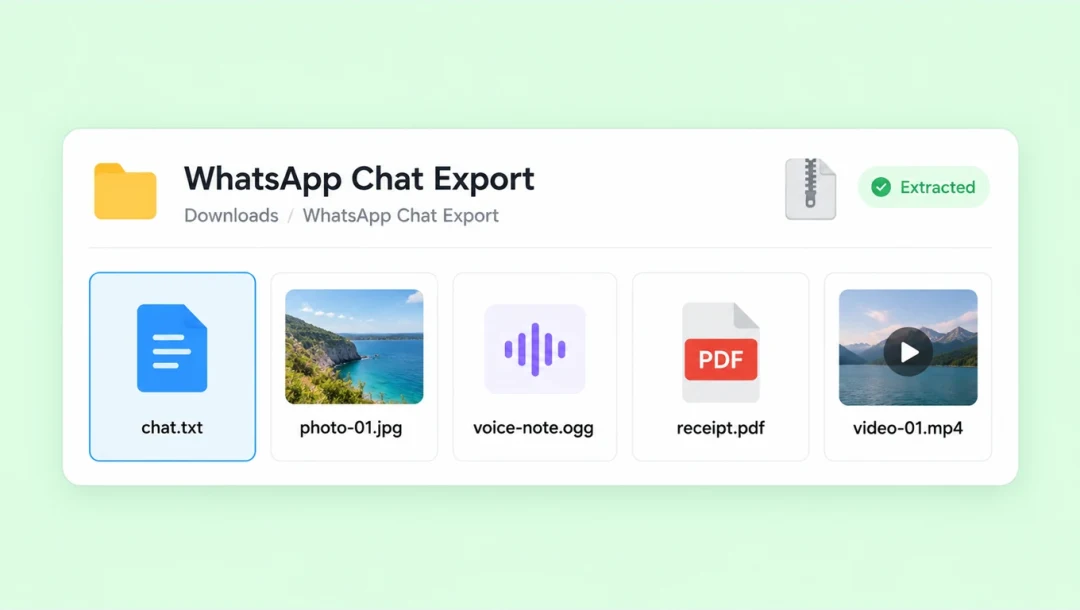
The extracted folder: the chat's TXT file sits next to its media attachments.
2. Open the conversation file
After extraction, open the chat's TXT file with a text editor, then open images, videos or other attachments separately with compatible applications.
3. Keep the files together
Store the conversation and its attachments in the same folder so related messages and media stay easy to find.
Extracting a ZIP does not turn the conversation into a WhatsApp-style chat. For that, you need a viewer or a separately generated visual archive.
Method 3: View Exported WhatsApp Chats as HTML
If you're looking for a WhatsApp chat viewer, a readable HTML archive can be a convenient alternative. Unlike a plain TXT export, an HTML archive preserves a visual conversation layout, which makes messages much easier to follow.
Why use HTML for WhatsApp chat viewing?
An HTML chat archive offers several practical advantages:
- Readable layout: messages appear as chat bubbles on a chronological timeline.
- Browser-based: any compatible browser can open it.
- Local archiving: the copy stays on your computer, useful for business and support reviews.
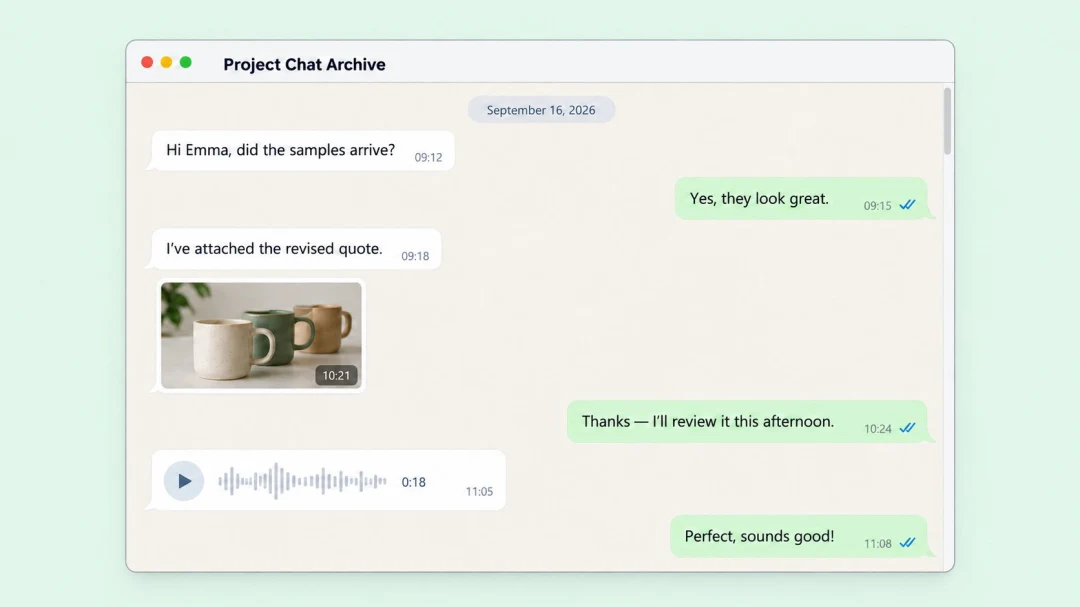
One way to generate this type of archive is with WAExport, a Chrome extension designed for exporting accessible WhatsApp Web conversations.
How to Export WhatsApp Chats as HTML Using WAExport
WAExport supports exporting WhatsApp Web conversations to HTML, Excel, and CSV. Its HTML format is designed for readable conversation archiving.
1. Install WAExport
Install the extension from the Chrome Web Store and pin it to your browser toolbar.
2. Open WhatsApp Web
Sign in to WhatsApp Web in Google Chrome and wait for the conversations you want to export to load. WAExport works with messages and media that are currently accessible there; it cannot recover permanently deleted conversations.
3. Open the WAExport panel
Click the WAExport icon in your Chrome toolbar, then choose the chat export option.
4. Select your conversations
Choose the chats you want to archive — one conversation or several — and set a start and end date to define the export range.
5. Choose HTML as the export format
Select HTML, not Excel or CSV — HTML is the right choice when you want to read the conversation rather than analyze it as data.
6. Configure export settings
Choose the available export mode and other relevant options. WAExport provides Safe Mode and Quick Export: Safe Mode adjusts the extraction pace, but it does not guarantee protection against WhatsApp account restrictions. Media attachment export also requires the Max plan.
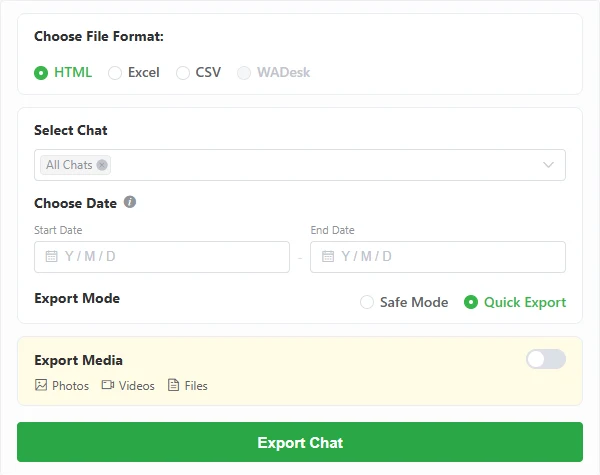
The panel controls format, chats, date range and media.
7. Export and open the HTML file
Start the export and keep WhatsApp Web open while it runs. When it finishes, open the HTML file in a compatible browser to read the conversation.
If your archive includes media attachments, keep the media folder and its relative paths alongside the HTML file so the page can reference them.
For additional installation and export instructions, see the WAExport user guide.
How to View Exported WhatsApp Chats on a PC
A computer is usually the easiest place to read an export: TXT opens in a text editor, ZIP extracts with built-in tools, and HTML opens in any browser. Keep in mind that WAExport is designed for Google Chrome and WhatsApp Web — it is not a desktop application, and it does not export chats from the WhatsApp mobile app.
Can You View Exported WhatsApp Chats with Media?
Yes — if you need a WhatsApp chat viewer with media, look for a format that shows both readable messages and attachments. WAExport can create HTML chat archives with accessible images, videos, voice messages, and documents when the media export option is available under the Max plan.
When media is included, the files are stored locally in a separate folder, and the HTML archive references them using relative paths.
To avoid missing attachments:
- Make sure the media is accessible in WhatsApp Web before exporting.
- Select the media export option available with your plan.
- Keep the exported HTML file and its media folder together.
- Check the archive to confirm the attachments are present.
Common Problems When Opening Exported WhatsApp Chats
The exported chat file will not open
First, check the file extension: open .txt files with a text editor and .html files in a browser. Extract a ZIP archive before reading the conversation inside.
My exported WhatsApp chat has no images or videos
Check whether media was included in the original export. With WAExport, media attachment export requires Max access, and the files must be available through WhatsApp Web when the export takes place.
My HTML chat opens, but the media is missing
If the conversation opens but no photos, videos or voice notes appear, the media export option was most likely not enabled. Confirm that Export media files was selected and run the export again — the option applies when the export runs, not to a file you already created.
Can I import an exported chat back into WhatsApp?
In short, no. An export keeps the content of a conversation, but WhatsApp cannot load it back as an active chat. WAExport's HTML, Excel and CSV files are designed for archiving, reading and analysis, not for restoring conversations.
Is it safe to view exported WhatsApp chats?
Exported chats may contain sensitive information, so store them securely and avoid uploading them to untrusted online viewers. WAExport processes chat data locally in your browser without uploading chat content to external servers.
Frequently asked questions
What is the best format for reading exported WhatsApp chats?
TXT is useful for simple text access, HTML for a visual chronological archive, and Excel or CSV for structured data review.
Can I view exported WhatsApp chats offline?
Locally saved TXT files and self-contained HTML content can generally be opened without an internet connection. For HTML archives with attachments, keep the necessary local files together.
Do I need a WhatsApp chat export viewer?
Not always — TXT opens in a text editor and HTML in a browser. A dedicated exported WhatsApp chat viewer may be useful for extra formatting or file processing, but check which formats it supports.
Can I view exported WhatsApp chats on Windows?
Yes. Windows users can open TXT exports with Notepad, extract ZIP archives using built-in tools, and open HTML archives in browsers such as Chrome.
Choose the format, then keep the archive together
Viewing an exported WhatsApp conversation does not have to be complicated. A TXT file is enough to read a few messages, and a ZIP archive can be extracted and opened file by file.
For a conversation history you want to read and keep, HTML is the easier format — and if your chats are still accessible in WhatsApp Web, WAExport can export them as readable HTML archives or structured Excel and CSV files. Keep the media folder together, and your conversations stay accessible when you need them.
🎁 Free 1-Day Pro Access
Want to test the Pro workflow before choosing a paid plan? Claim your free 1-day WAExport Pro activation code, then export an accessible chat to HTML, Excel or CSV. No payment card is required.
How to See Deleted Messages on WhatsApp Web: Chat Export Guide
WhatsApp Web can't reveal messages deleted for everyone. See which saved copies may help — earlier exports and backups — and how to prevent future loss with WAExport.
WAExport vs iMazing: Which WhatsApp Chat Exporter Fits You in 2026?
WAExport or iMazing—which one fits your WhatsApp export workflow? Compare browser access, iPhone backups, formats, media, filtering and setup before choosing.