WhatsApp Backup Stuck or Not Working? 7 Ways to Fix It
Is your WhatsApp backup stuck on “Preparing,” frozen at 99%, or failing to complete? Whether you're using an iPhone or Android phone, backup problems can be frustrating, especially when you need to protect important conversations before switching devices.
A WhatsApp chat backup not working issue is often caused by insufficient storage, an unstable connection, or incorrect cloud settings. Fortunately, most problems can be resolved without deleting your messages.
This guide covers seven practical fixes for WhatsApp backup issues on iPhone and Android. If cloud backup continues to fail, you can also use WhatsApp chat export to save accessible conversations to your computer.
Why Is My WhatsApp Backup Stuck?
WhatsApp backups can stop responding at different stages. The most common problems include:
- Stuck on Preparing: WhatsApp may be processing a large chat history or media files before uploading.
- Stuck at 99%: The backup may be struggling to finish uploading or processing data.
- Backup Not Starting: Cloud account settings, permissions, or network restrictions may prevent the process from beginning.
- Backup Keeps Failing: Insufficient storage, connection interruptions, or software issues may repeatedly stop the backup.
The exact cause depends on your device and where the backup process gets stuck.
7 Ways to Fix WhatsApp Backup Stuck or Not Working
Try these solutions in order, starting with the simplest checks.
1. Check Your Internet Connection
An unstable connection is one of the most common reasons WhatsApp backups fail.
Connect to reliable Wi-Fi, temporarily disable your VPN, and try again. If your network is slow, large backups containing videos and photos may take significantly longer.
2. Make Sure You Have Enough Storage
WhatsApp needs sufficient storage to prepare and upload your chat history.
On iPhone: Check both iPhone storage and available iCloud space.
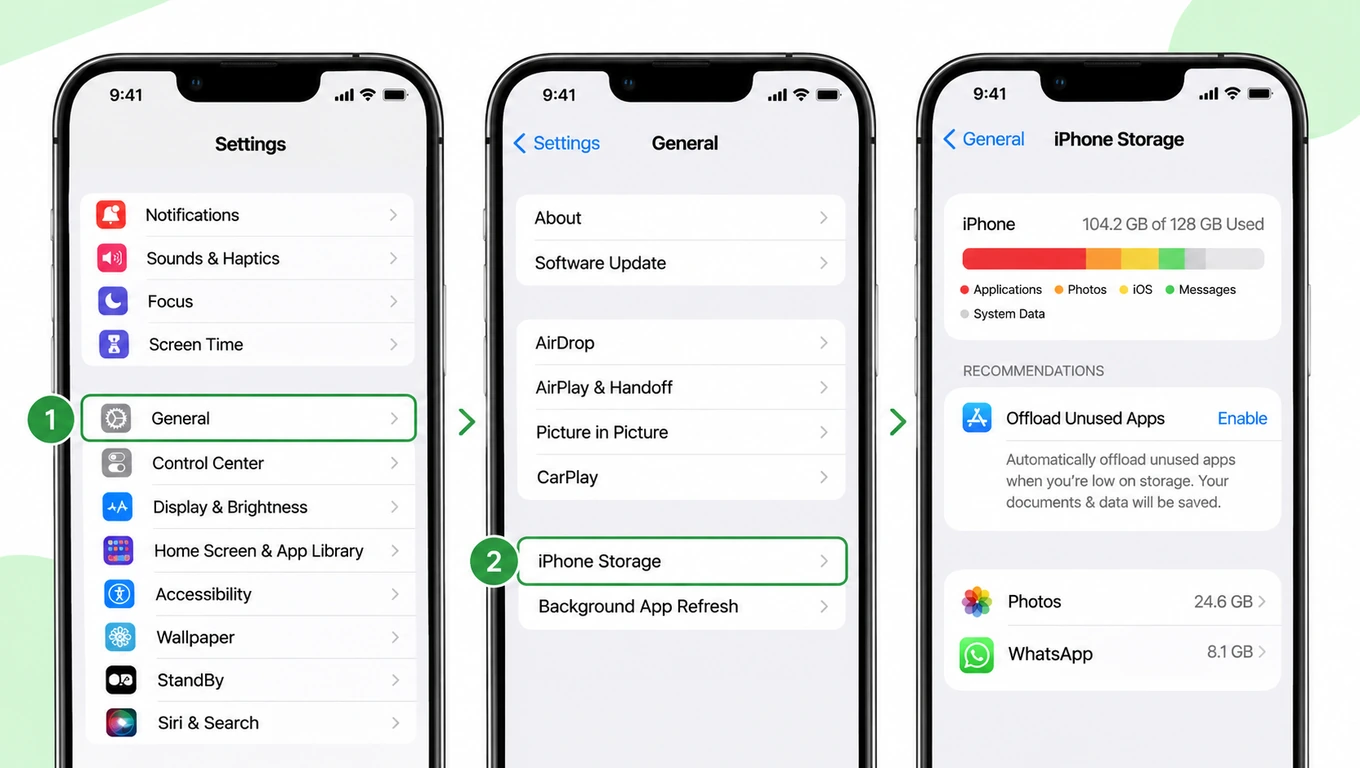
On Android: Check your phone's storage and available Google account storage.
If space is limited, remove unnecessary files or exclude videos from your next backup.
3. Check Your Cloud Backup Settings
Incorrect cloud settings can prevent WhatsApp from completing a backup.
For iPhone:
- Open Settings > Your Name > iCloud.
- Make sure iCloud Drive is enabled and WhatsApp has iCloud access.
- Open WhatsApp > Settings > Chats > Chat Backup.
- Tap Back Up Now.
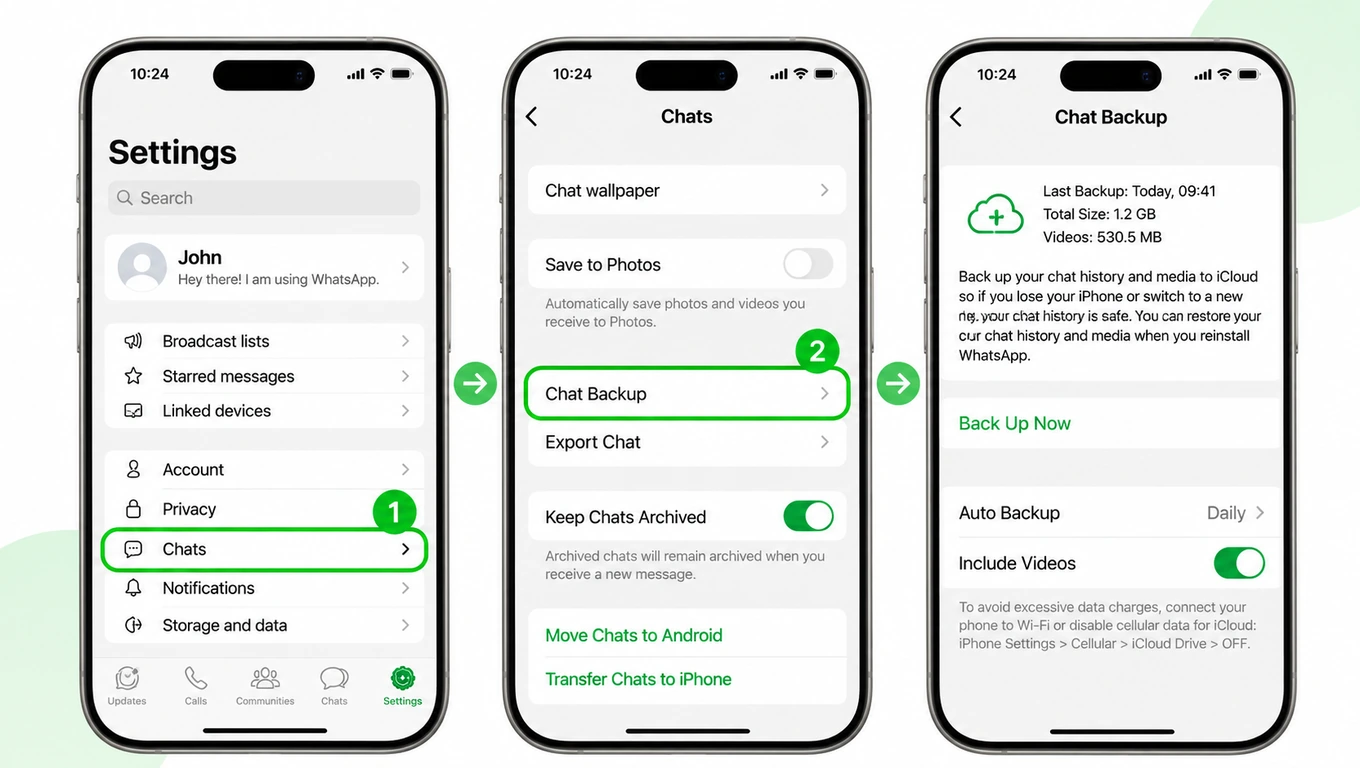
For Android:
- Open WhatsApp > Settings > Chats > Chat backup.
- Confirm the correct Google account is selected.
- Review your backup settings and tap Back up.
Make sure you're signed in to the intended cloud account and have sufficient storage available.
4. Reduce Your Backup Size
Large media files can slow down the backup process, especially when WhatsApp is stuck on preparing.
Open WhatsApp > Settings > Chats > Chat Backup and turn off Include Videos if enabled.
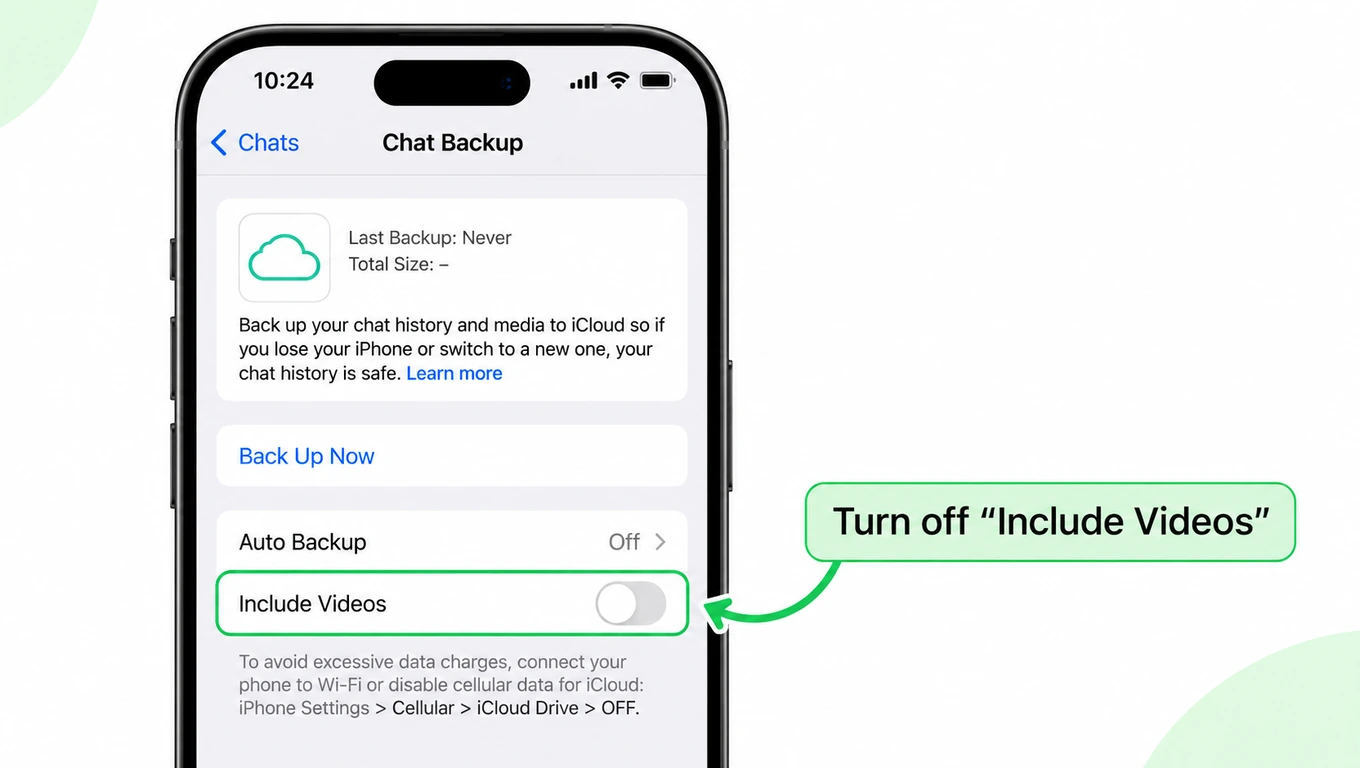
You can also review large files under Settings > Storage and Data > Manage Storage. Avoid deleting important media unless you've saved another copy.
5. Restart Your Phone
Temporary software issues can interrupt background backup processes.
Restart your iPhone or Android phone, reconnect to Wi-Fi, and manually start another backup.
6. Update WhatsApp and Your Phone
Outdated software may cause compatibility issues.
Update WhatsApp through the App Store or Google Play Store. Check for available iOS or Android system updates, then try backing up again.
7. Check Battery and Background Restrictions
Some devices restrict background activity to save battery power.
Keep your phone charged, disable Low Power Mode or Battery Saver temporarily, and leave WhatsApp open while testing the backup.
Important: Don't uninstall WhatsApp, clear its app data, or delete existing backups unless you've confirmed your conversations are safely preserved.
WhatsApp Backup Still Not Working? Save Your Chats Another Way
If you've tried these fixes and your backup still won't complete, you don't have to rely entirely on Google Drive or iCloud to preserve important conversations.
As long as your chats remain accessible, you can export them as files for viewing and safekeeping.
Export WhatsApp Chats with WAExport
WAExport is a Chrome-based WhatsApp chat exporter that lets you save conversations from WhatsApp Web directly to your computer.
Why use WAExport?
- No Cloud Backup Needed: Export accessible chats without Google Drive or iCloud.
- Bulk Export: Save multiple conversations instead of exporting them individually.
- Flexible Formats: Choose HTML, Excel, or CSV.
- Media Support: Export available photos, videos, and documents.
- Date Range Selection: Save conversations from a specific period.
How to Export WhatsApp Chats
- Install the WAExport Chrome extension.
- Open WhatsApp Web and connect your account.
- Select the conversations and date range you want to export.
- Choose HTML, Excel, or CSV, then start the export.
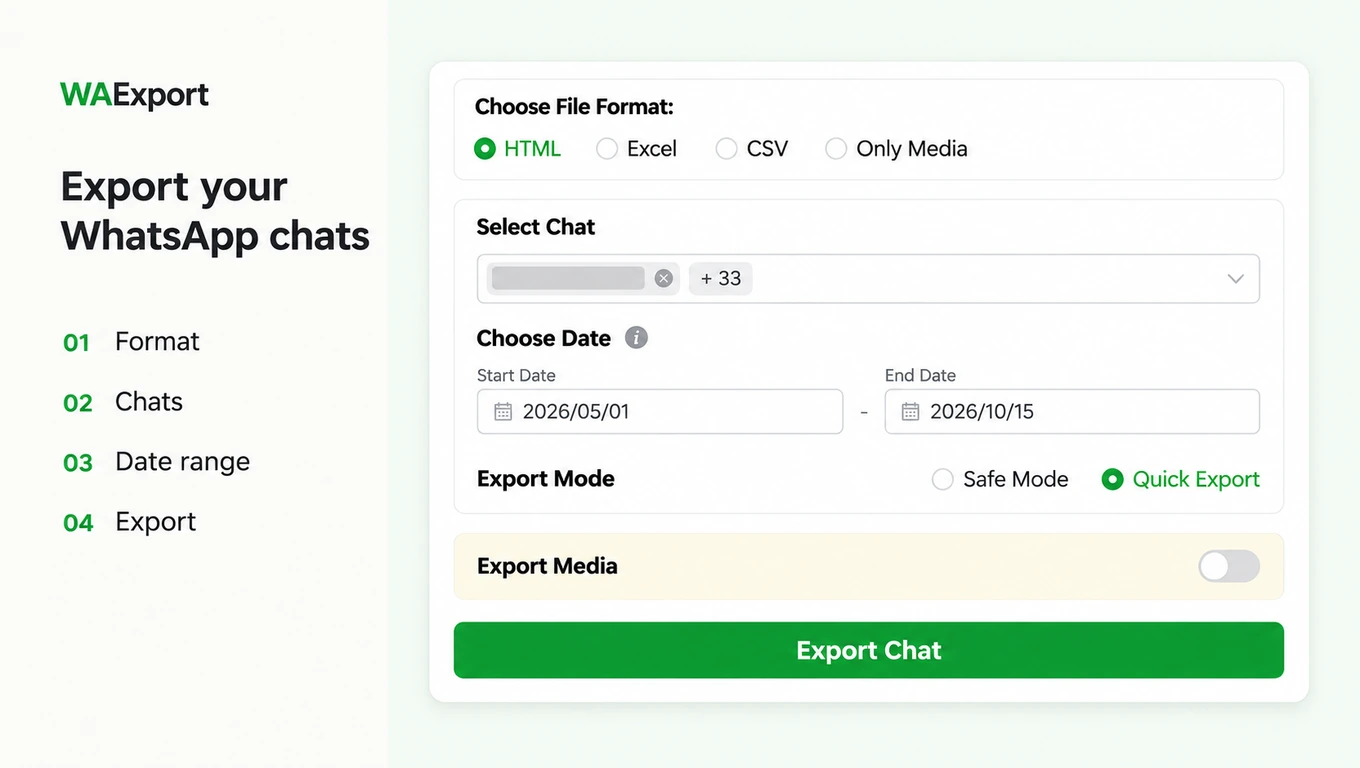
Your exported files can be stored on your computer for reference, record keeping, or further analysis.
Note: WAExport can only export accessible chats and media. It cannot recover deleted messages or restore exported files directly into WhatsApp.
WhatsApp Backup Stuck on iPhone vs. Android: What's Different?
Although the basic troubleshooting steps are similar, iPhone and Android use different cloud backup systems.
| Feature | iPhone | Android |
|---|---|---|
| Cloud backup | iCloud | Google account storage |
| Account | Apple Account | Google account |
| Key setting | iCloud Drive and WhatsApp access | Google account and WhatsApp backup settings |
| Storage to check | iPhone + iCloud | Phone + Google storage |
If your iPhone WhatsApp backup is stuck, pay particular attention to iCloud Drive permissions and available storage.
If your WhatsApp backup is not working on Android, check your selected Google account, Google storage, and backup settings.
Frequently Asked Questions
Why Is WhatsApp Backup Stuck on Preparing?
WhatsApp may be processing a large number of messages or media files before uploading them. Try using stable Wi-Fi, checking storage, and excluding videos to reduce the backup size.
Why Is My WhatsApp Backup Stuck at 99%?
A backup stuck at 99% may be caused by slow uploads, insufficient storage, or temporary processing delays. Give it some time before restarting the process, particularly if the backup is large.
Can I Fix WhatsApp Stuck on Backing Up Without Losing Chats?
Usually, troubleshooting network connections, storage, permissions, and software updates does not require deleting your chats. Avoid reinstalling WhatsApp or clearing app data without a verified backup.
What If WhatsApp Chat Transfer Is Not Working?
Chat transfer and cloud backup are different processes. If you're moving to a new phone, verify device compatibility, phone number requirements, and the official WhatsApp transfer instructions for your devices.
Can I Recover WhatsApp Chats Without a Backup?
If your chats are still accessible, you can export them for safekeeping. If messages have already been deleted and no usable backup exists, recovery may not be possible.
Can I Export WhatsApp Chats Without Cloud Backup?
Yes. WhatsApp's built-in export feature and tools such as WAExport can save accessible conversations without Google Drive or iCloud. However, exported files are not equivalent to restorable WhatsApp backups.
Final Thoughts
When your WhatsApp backup is stuck or not working, start by checking your connection, storage, cloud settings, and backup size. These simple fixes can resolve many common problems.
If cloud backup remains unavailable, WhatsApp chat export provides another way to preserve accessible conversations on your computer, helping you keep important messages and media organized.
What Does Export Chat Mean on WhatsApp? What Gets Saved and What Doesn’t
What is inside a WhatsApp Web export? Understand the ZIP, TXT and Markdown files, why attachments are missing, and when another format fits better.
How to Export WhatsApp Chat History: WAExport Method and Official Method
Learn how to export WhatsApp chat history with the WAExport Chrome extension to HTML, Excel or CSV, then compare WhatsApp's official Android and iPhone method.