WhatsApp Media Downloader 2026: Bulk Save Photos & Videos
Ever tried saving 50 product photos from a WhatsApp conversation? The first five are easy. By photo number 30, you're probably wondering why you're still clicking the same download button.
Whether you're managing customer conversations, collecting project files, or keeping important voice messages, a WhatsApp media downloader can help you save multiple files without downloading them one by one.
In this 2026 guide, we'll cover two ways to download WhatsApp media, including how to bulk save WhatsApp photos and videos, export audio and documents, and find older attachments without endless scrolling.
1. How to Download WhatsApp Photos, Videos, and Audio
There are two practical ways to save WhatsApp media to your computer: use WhatsApp Web's built-in download feature or a dedicated tool like WAExport.
Both methods can help you save media files, but they work differently.
WhatsApp Web vs. WAExport: What's the Difference?
| Feature | WhatsApp Web | WAExport |
|---|---|---|
| Best For | Saving a few files | Bulk media downloads |
| Photos & Videos | Download individually | Bulk export selected media |
| Audio & Documents | Download individually | Export supported attachments |
| Multiple Chats | Handle separately | Select multiple chats |
| Date Range | Browse messages manually | Set start and end dates |
| Media Selection | Select files individually | Choose media categories |
| Media-Only Export | Individual file downloads | Dedicated Only Media format |
| Chat Export Formats | Built-in chat export is available on mobile | HTML, Excel, CSV |
| Export Modes | Standard download | Safe Mode or Quick Export |
Which method should you choose?
If you only need a few photos or videos, WhatsApp Web is usually the simplest choice. It's free and doesn't require an additional extension.
However, if you need to download media from several conversations, select specific file types, or export attachments from a particular date range, WAExport offers a more flexible workflow.
Let's explore both methods.
Method 1: Download Media Using WhatsApp Web
WhatsApp Web works well for occasional downloads.
To download photos and videos:
- Open WhatsApp Web on your computer.
- Select the conversation containing your media.
- Click the photo or video you want to save.
- Select the download icon.
- Find the downloaded file on your computer.
You can also download available voice messages, audio files, and documents from the relevant conversations.
This method is convenient when a customer sends three product images or a friend shares a short video.
But downloading hundreds of attachments individually can quickly become repetitive.
Method 2: Bulk Download WhatsApp Media with WAExport
If you frequently handle large conversations, WAExport provides a more efficient alternative.
WAExport is a Chrome extension designed for WhatsApp chat export and bulk media downloads. It lets you export multiple conversations, filter messages by date, and save specific types of attachments directly to your computer.
One particularly useful feature is Only Media, which lets you focus on media attachments instead of choosing a chat record format such as HTML, Excel, or CSV.
Here's how to use it.
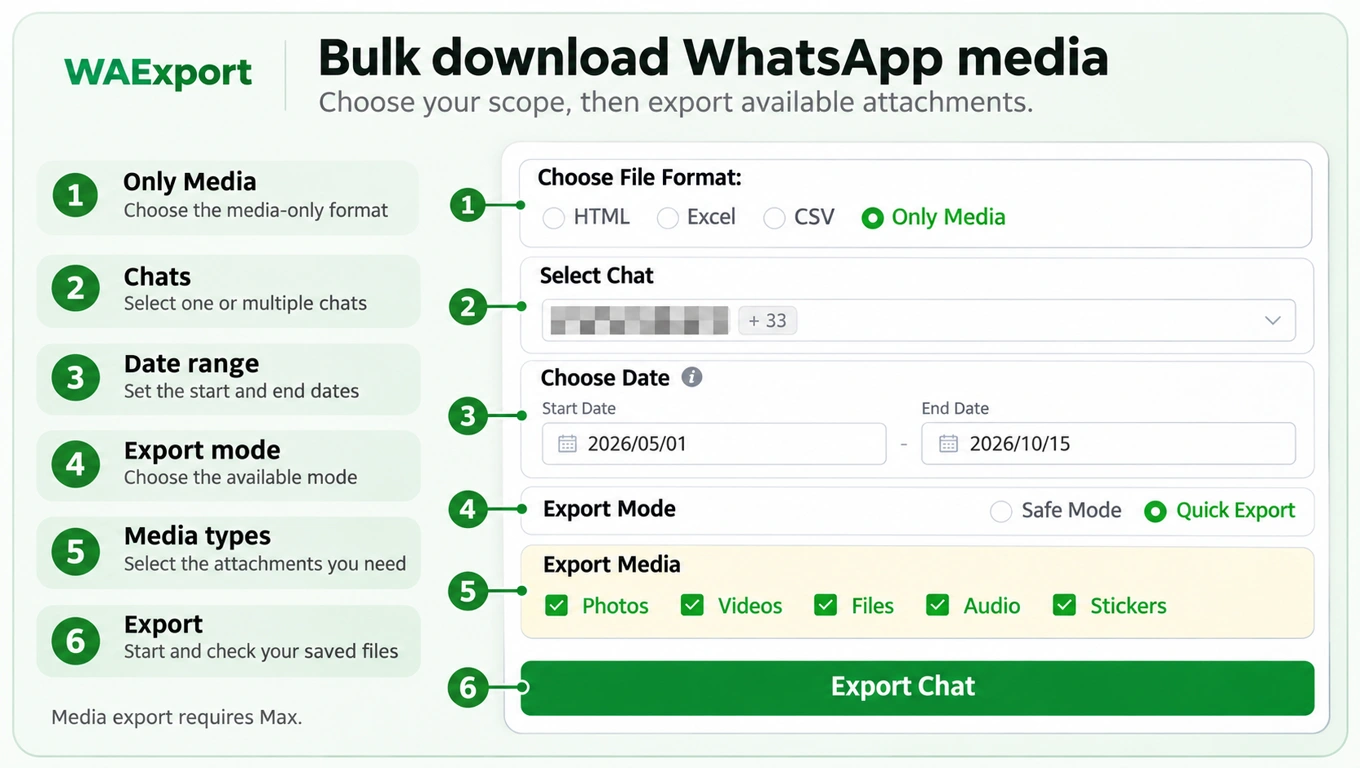
Step 1: Install WAExport
Visit the WAExport website and install the Chrome extension.
Open WhatsApp Web and sign in to your account.
Step 2: Choose Only Media
Open the WAExport extension and go to the Chat tab.
Under Choose File Format, you'll see four options:
- HTML
- Excel
- CSV
- Only Media
Select Only Media when your main goal is to download attachments rather than export a conversation as a document or spreadsheet.
Step 3: Select One or Multiple Chats
Under Select Chat, choose the conversations containing the files you need.
WAExport supports selecting multiple chats, making it useful when photos and videos are scattered across customer conversations or project groups.
Step 4: Choose a Date Range
Use the Choose Date section to set your Start Date and End Date.
For example, if you only need product photos exchanged between May and October 2026, you can select that period rather than exporting an unnecessarily broad range.
Step 5: Select an Export Mode
WAExport provides two export options:
- Safe Mode
- Quick Export
Choose the mode that best suits your needs. If you're unsure which to use, consult WAExport's guidance for details about their differences.
Step 6: Choose Which Media Types to Export
Under Export Media, WAExport provides five selectable categories:
- Photos: Images shared in conversations.
- Videos: Video attachments.
- Files: Documents and other supported files.
- Audio: Voice messages and audio attachments.
- Stickers: Stickers shared in chats.
You can select the categories you want and deselect those you don't need.
For example, if you only want to bulk save WhatsApp photos and videos, enable Photos and Videos while leaving the other categories unchecked.
This helps keep your export focused on the files you actually need.
Step 7: Start the Export
Review your selected chats, date range, export mode, and media categories.
Then start the export using the extension's available controls.
Once the export finishes, check the downloaded files to confirm that the expected attachments are included.
Tip: Choose Only Media to download photos, videos, and audio files. If you need a complete WhatsApp chat export with conversation context, select HTML for readable chat histories or Excel/CSV for structured message records.
Important: Media export availability depends on your WAExport plan. The Max plan provides media export access; check the current plan details before starting.
2. How to Download Old Media from WhatsApp
Wondering how to download old media from WhatsApp without scrolling through thousands of messages? Whether you need photos from last year or videos shared months ago, there are two practical ways to find and save older attachments.
Method 1: Find Old Media on WhatsApp Web
- Open WhatsApp Web and select a conversation.
- Click the contact or group name to access shared media, links, and documents.
- Browse the available files and download what you need.
This works well for a few attachments, but finding older files across multiple chats can be time-consuming.
Method 2: Bulk Download Old WhatsApp Media with WAExport
WAExport lets you export available media from specific conversations and date ranges:
- Open WAExport and select Only Media.
- Choose one or multiple chats.
- Set your Start Date and End Date.
- Select Photos, Videos, or other media types, then start the export.
This makes it easier to download old WhatsApp photos and videos without manually searching through each conversation.
Note: WAExport can only export accessible attachments. It cannot recover permanently deleted messages or unavailable media files.
3. Is WAExport a Free WhatsApp Media Downloader?
If you're searching for a free WhatsApp media downloader, it's important to distinguish between saving individual attachments and exporting media in bulk.
WhatsApp Web already provides free download options for available individual files.
WAExport offers additional features for users who need more control over their exports, including multiple chat selection, date filtering, media categories, and different output formats.
What Can You Export with WAExport?
Depending on the selected options and plan, WAExport supports:
- Individual or multiple WhatsApp chat exports.
- Date-range filtering.
- HTML, Excel, and CSV output formats.
- A dedicated Only Media format.
- Photos, videos, files, audio, and stickers.
- Safe Mode and Quick Export options.
WAExport works through Google Chrome and WhatsApp Web, allowing users to download export files to their computers.
It does not replace WhatsApp's backup system, and exported files cannot be imported directly into WhatsApp to restore conversations.
Who Can Benefit from WAExport?
Sales and customer service teams
Collect product photos, customer documents, and important voice messages from multiple conversations.
Project managers
Organize reference videos, shared files, and communication records from different projects.
Personal users
Save available photos, videos, and other attachments from important conversations for future reference.
Whether you're managing business communication or preserving personal files, the goal is to make media easier to collect and organize.
4. WhatsApp Media Downloader FAQs
Can I Download All WhatsApp Photos and Videos at Once?
WAExport supports selecting multiple chats and exporting supported photos and videos in bulk through its Only Media option.
However, export results depend on which attachments remain available and your plan's permissions.
Can I Download Only WhatsApp Videos?
Yes. In WAExport, select Only Media and enable Videos under Export Media. Deselect the other media categories if you don't need them.
Can I Download WhatsApp Voice Messages in Bulk?
WAExport includes an Audio option under Export Media. With the appropriate access, you can select Audio to include supported voice messages and audio attachments.
Why Can't I Download Old WhatsApp Media?
Possible reasons include connection issues or attachments that are no longer available.
An export tool cannot guarantee access to files that WhatsApp Web itself can no longer retrieve.
Can I Download WhatsApp Media from Multiple Chats?
Yes. WAExport supports selecting multiple conversations for export, which can help when you need files from several customers, groups, or projects.
Conclusion: Download WhatsApp Media More Efficiently in 2026
Downloading WhatsApp media one file at a time can be frustrating. With WAExport, you can bulk save photos, videos, and other attachments from multiple chats, making file management easier.
Want to try WAExport for free? Claim your free 1-day Pro trial and explore its chat export features before upgrading. No payment card required.
Note: Bulk media exports require the Max plan.
How to Export WhatsApp Chat History: WAExport Method and Official Method
Learn how to export WhatsApp chat history with the WAExport Chrome extension to HTML, Excel or CSV, then compare WhatsApp's official Android and iPhone method.
WhatsApp Web Export Chat Option Missing? How to Download Your Chats
Can't find Export Chat in WhatsApp Web? Learn how WAExport downloads chats to your computer, which formats to choose, and what to check if media is missing.