WhatsApp Web Export Chat Option Missing? How to Download Your Chats
You open a conversation, follow a tutorial, and look through the menu—but there is no Export Chat option where the instructions say it should be. Before treating this as a broken account, check whether that tutorial describes WhatsApp on a phone rather than WhatsApp Web.
If your current web interface does not offer the export action you need, a whatsapp chat downloader can provide a separate browser workflow. The goal is not to make a missing menu item appear: it is to save accessible conversations as files you can open outside WhatsApp.
This guide covers the WAExport workflow and checks for the right conversation, dates and accessible attachments.
First, Check Your Platform and Your Goal
WhatsApp Web runs in a browser tab. The standalone desktop app runs as an installed application, while Android and iPhone have their own mobile interfaces. A menu location shown for one is not a reliable instruction for another. Features and labels can also change between releases.
If you cannot find the WhatsApp Web export chat option, do not assume your account is restricted. Reinstalling an app or clearing your browser data does not establish whether the feature exists in that interface. Identify the platform first, then choose an appropriate method.
Also distinguish four different tasks:
- Save a conversation: create a readable or structured file containing messages.
- Download an attachment: save an individual photo, video or document; this does not preserve the surrounding conversation.
- Restore a backup: return supported backup data to WhatsApp.
- Transfer to another phone: move conversations through a supported migration process.
WAExport addresses the first task, with optional supported media. It is an independent extension, not an official WhatsApp feature, backup restoration service or deleted-message recovery tool.
How to Download WhatsApp Web Chats with WAExport
WAExport adds its own export panel alongside WhatsApp Web. Its controls belong to the extension, not to a newly unlocked WhatsApp menu. Start with one accessible conversation and a manageable date range so you can inspect the result before expanding the selection.
1. Install the extension and open WhatsApp Web
Visit the homepage to review the whatsapp chat downloader and follow its installation link. Open WhatsApp Web in Chrome, sign in if needed, and confirm that the conversation you want can be accessed. Installing a Chrome extension does not add the same panel to the separate desktop application.
2. Select the conversation
Open WAExport and review the chat selection before starting. Choose the conversation you actually need rather than leaving a broader selection unintentionally. Content must remain accessible through the current web session; choosing a chat does not guarantee that every historical message can be retrieved.
3. Choose HTML, Excel or CSV
Choose HTML for reading a conversation in a browser, Excel for working with a spreadsheet, or CSV for importing structured records into another compatible tool. These are external files, not packages that restore messages into WhatsApp.
4. Set dates and decide whether to include media
Set the start and end dates if you need a particular period. Enable Export Media only when attachments are required and your plan permits it. In the current extension, media export requires Max access; text-export allowances also depend on the active plan and remaining quota.
Supported photos, videos, audio and files still have to be retrievable from WhatsApp Web. A media-enabled plan cannot make an expired or unavailable attachment downloadable.
5. Choose the processing mode and save
Safe Mode slows processing and increases intervals between export steps. Quick Export prioritizes speed. These are processing choices, not guarantees against account restrictions.
Start the export, choose the destination folder when prompted, and allow the requested write access so the extension can save the files. Keep the web session available until processing finishes. If you cancel or stop the operation, inspect the destination rather than assuming it contains a complete archive.
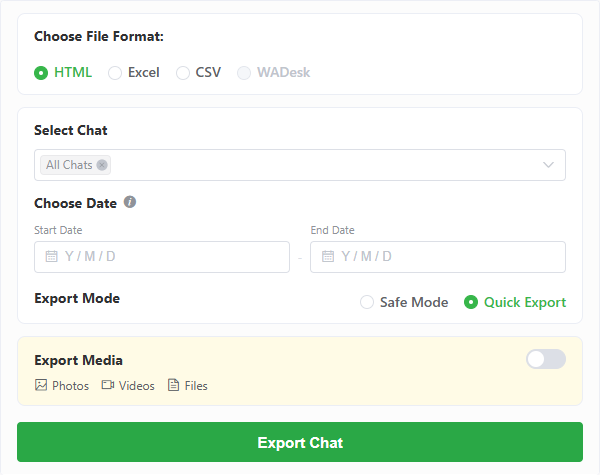
The extension's panel controls the export; it does not change WhatsApp's native menu.
Open the Downloaded Files and Check the Result
HTML: keep the archive together
In the current HTML workflow, WAExport writes an index.html in the selected destination and a folder for each exported conversation. The conversation folder contains its HTML file, style.css and script.js. When media is enabled, downloaded attachments are stored in a media subfolder and referenced through relative paths.
Open index.html to navigate the available conversation exports, or open the conversation's HTML file directly. Check the message order and timestamps, then open a few attachments. Do not move only the HTML file and expect its companion files to follow: missing styles, scripts or media can affect how the archive appears or works.
This is a folder-based workflow, not a promise that every export arrives as a single ZIP. When moving an archive, preserve the generated directory structure.
Excel and CSV: check how the spreadsheet reads the data
Open the .xlsx file in a compatible spreadsheet application. For CSV, use the application's import options if double-clicking produces incorrect columns or unreadable characters.
The current output separates sent and received message text and includes fields such as message type, message time and attachment link. Column labels can vary with the extension language. Check several rows against the source conversation, including non-English text and dates. Spreadsheet applications may interpret date strings differently, so confirm the displayed values before filtering or analysis.
An attachment link is not the attachment itself. If media was saved, keep the associated files in their relative locations. A row describing an image or audio message does not prove that its file was downloaded successfully.
Check scope before relying on the archive
Compare a message near the beginning of the requested period, one near the end, and a few in between. Confirm the chat identity and selected date range. Test different attachment types when they matter to your purpose.
Successful file creation does not establish that the archive contains every message ever sent. Web-session availability, selection, quota and attachment retrieval still matter. Keep an untouched copy before editing spreadsheet records or reorganizing files, and protect exported conversations from unintended sharing.
Missing Messages or Media? Check These Items
| What you notice | What to check | Important boundary |
|---|---|---|
| Older messages are absent | Selected dates, remaining allowance and whether the history is accessible through WhatsApp Web | Selecting an earlier date does not recover unavailable history |
| Attachments are missing | Media switch, Max access and whether the attachment can still be opened in the web session | A text entry or caption is not proof that the media file was saved |
| HTML images no longer appear | Whether the conversation file and its media folder were moved, renamed or separated | Relative links depend on the generated folder structure |
| The export did not finish | Session status, extension version, pause/stop state, destination-folder permission and browser download messages if present | Files already written may represent only part of the requested export |
Record the failed step and visible error before retrying. Check failed attachments in the original conversation, or inspect session and destination access if processing stops. Repeated attempts cannot guarantee recovery of unavailable content.
When to Use Mobile Export or a Backup Instead
If you only need a text copy from the phone, WhatsApp's mobile export workflow may be sufficient. Our guide to WAExport and the official mobile export methods explains the Android and iPhone steps without requiring you to find the same menu in WhatsApp Web.
If the real goal is to continue those conversations inside WhatsApp on another phone, choose the appropriate supported transfer or backup-and-restore process instead. Downloading HTML, Excel or CSV creates an external record; it does not turn that record into a restorable WhatsApp backup.
Frequently Asked Questions
Does a missing Export Chat option mean something is wrong with my account?
Not by itself. First check the platform and the instructions you are following. A phone tutorial may describe a menu that differs from your current web interface. A missing menu item alone is not evidence of an account restriction.
Are WhatsApp Web and the desktop app interchangeable for this method?
No. This WAExport method uses a Chrome extension with WhatsApp Web. Do not expect the extension panel or identical menus to appear inside the standalone desktop application.
Can I download a specific date range?
Yes. WAExport provides start and end date controls. The resulting export remains subject to accessible content and applicable allowances; the dates do not make unavailable history reappear.
Why are some older messages or media missing?
Check the selected period, plan allowance, media option and whether the content can still be accessed through WhatsApp Web. Also check the saved directory before concluding that an attachment was never downloaded. There is no guarantee of retrieving every historical item.
Can I import the downloaded files back into WhatsApp?
No. The exported HTML, Excel and CSV files are for reading or analysis outside WhatsApp. Use a supported backup or transfer workflow when messages need to remain usable inside the app.
Conclusion
If your WhatsApp Web interface does not offer the export action you need, begin by separating platform differences from actual download failures. Choose a method that matches the accessible data, then inspect the saved files rather than relying only on a completion message.
For conversations available in WhatsApp Web, the whatsapp chat downloader provides WAExport's format, date, media and processing controls. Select the scope you need, save the archive, and keep its companion files together.